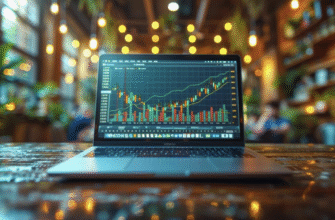
TradingView is a web-based charting platform and social network for traders. It provides real-time and historical price data for stocks, forex, cryptocurrencies, futures, and indices, along with a powerful suite of charting tools, technical indicators, and drawing instruments. Unlike broker-specific platforms like MetaTrader or cTrader, TradingView is broker-agnostic you can use it to analyze any market, regardless of where you eventually execute your trades.
For prop traders, TradingView has become the de facto standard for market analysis. Its cloud-based nature means you can access your charts, watchlists, and drawings from any device your desktop at home, your laptop at a cafe, or your phone on the go. Your workspace is always synchronized, and you never lose your analysis. This portability is especially valuable for prop traders who may need to monitor positions across multiple sessions or trade while traveling.
The key insight about TradingView is that it is primarily an analysis and preparation tool, not an execution platform. While TradingView does offer order execution through certain broker integrations, most prop traders use it for what it does best: charting, analysis, and trade planning. You analyze setups in TradingView, mark your entry and exit levels, set alerts, and then execute the trade through your prop firms designated platform. This separation of analysis and execution is a strength it forces you to plan your trade before you pull the trigger.

- How to Set Up a TradingView Workspace
- Choosing a Chart Type
- Selecting Timeframe Layouts
- Building a Watchlist
- How to Read and Customize Charts in TradingView
- Candlestick Basics
- Drawing Support and Resistance
- Using Trendlines and Zones
- How to Add Indicators Without Overloading the Chart
- Moving Averages
- RSI and MACD
- How to Use Alerts and Watchlists Efficiently
- How to Use TradingView in a Prop Firm Workflow
- Pre-Market Preparation
- Marking Invalidation Levels
- Planning Entries Before Execution
- Common Mistakes Beginners Make in TradingView
- Best Practices for Keeping a Clean and Useful Workspace
- Key Takeaways
- FAQ
- Is TradingView enough for actual trading?
- Can you trade directly from TradingView?
- Which indicators should beginners start with?
- Is the free version of TradingView enough?
- How do prop traders use TradingView in practice?
How to Set Up a TradingView Workspace
A well-organized TradingView workspace is the foundation of efficient analysis. Here is how to set one up from scratch:
Choosing a Chart Type
When you open a new chart in TradingView, the default is usually a candlestick chart, which is the most widely used chart type for price action analysis. Candlesticks show the open, high, low, and close for each time period, making it easy to identify patterns and momentum shifts. For most trading purposes, candlesticks are the best choice.
To change your chart type, click the chart type icon in the top toolbar (it looks like a small candlestick) and select your preferred option. You can also save different chart types as templates for quick switching.
Selecting Timeframe Layouts
TradingView allows you to view multiple timeframes simultaneously using its layout feature. Click the layout icon in the top toolbar and choose from preset layouts (2 charts, 4 charts, etc.) or create a custom arrangement. A common setup for day traders is a 2-chart layout showing the 1-hour chart (for trend context) and the 5-minute chart (for entry timing). Swing traders might use a 2-chart layout with the daily chart and the 4-hour chart.
The key is to always have a higher timeframe for context and a lower timeframe for execution. Trading solely on one timeframe is like driving while looking only at the road immediately in front of your car — you miss the bigger picture.
Building a Watchlist
The watchlist panel on the right side of TradingView is where you keep track of the instruments you want to monitor. To add an instrument, click the + icon in the watchlist panel and search for the symbol (e.g., EURUSD, BTCUSD, SPX). You can organize your watchlist into folders — for example, “Forex Majors,” “Indices,” “Crypto,” or “Prop Firm Allowed Pairs.” This keeps your workspace clean and helps you focus on the instruments you actually trade.
A best practice is to keep your watchlist small no more than 10-15 instruments. A long watchlist creates analysis paralysis. Focus on the instruments you know well and that fit your trading strategy.
How to Read and Customize Charts in TradingView
Once your workspace is set up, the next step is learning to read and customize your charts effectively.
Candlestick Basics
Each candlestick represents one time period (e.g., one hour, one day). The body of the candle shows the range between the open and close prices. If the close is higher than the open, the candle is typically green (bullish). If the close is lower than the open, the candle is red (bearish). The wicks (or shadows) above and below the body show the high and low prices for that period.
Key candlestick patterns to recognize include:
- Pin bars: A candle with a long wick on one side and a small body on the other, indicating rejection of a price level.
- Engulfing patterns: A large candle that completely engulfs the previous candle, signaling a potential reversal.
- Doji: A candle where the open and close are nearly equal, indicating indecision.
You do not need to memorize dozens of candlestick patterns. Focus on understanding what each candle tells you about the battle between buyers and sellers.
Drawing Support and Resistance
Support and resistance are the foundation of technical analysis. In TradingView, use the horizontal line tool (or the rectangle tool for zones) to mark key levels where price has historically reversed. Look for areas where price has bounced multiple times these are your support (below current price) and resistance (above current price) levels.
A pro tip: draw your levels on a higher timeframe first (daily or 4-hour), then switch to your trading timeframe and refine them. Levels from higher timeframes are more significant and more likely to hold.
TradingView also offers a “magnet mode” that snaps your drawings to the exact high or low of a candle. Enable it by clicking the magnet icon in the left toolbar. This ensures precision in your level placement.
Using Trendlines and Zones
Trendlines connect a series of higher lows (in an uptrend) or lower highs (in a downtrend). Use the trendline tool in the left toolbar to draw them. A valid trendline should touch at least three price points. When price breaks through a trendline, it often signals a potential trend change.
Trading zones are often more useful than single lines. Use the rectangle tool to draw zones around areas where price has consolidated or reversed multiple times. These zones represent areas of supply or demand, and they often act as magnets for price.
How to Add Indicators Without Overloading the Chart
One of the most common mistakes beginners make in TradingView is adding too many indicators. A chart covered in lines and oscillators is not more informative it is more confusing. The goal is to use a small number of complementary indicators that each serve a specific purpose.
Moving Averages
Moving averages smooth out price data to help you identify the trend direction. The two most common types are the Simple Moving Average (SMA) and the Exponential Moving Average (EMA). The EMA gives more weight to recent prices and reacts faster to changes.
A practical setup is to use two moving averages: a fast EMA (e.g., 20-period) and a slow EMA (e.g., 50-period). When the fast EMA is above the slow EMA, the trend is up. When the fast EMA is below the slow EMA, the trend is down. You can also use the moving averages as dynamic support and resistance — in an uptrend, price often pulls back to the 20 EMA before continuing higher.
To add a moving average, click the “Indicators” button in the top toolbar, search for “Moving Average Exponential,” and select it. You can customize the length and color in the settings panel.
RSI and MACD
The Relative Strength Index (RSI) is a momentum oscillator that ranges from 0 to 100. Readings above 70 indicate overbought conditions, and readings below 30 indicate oversold conditions. However, the RSI is most useful not for these extreme readings but for divergence — when price makes a new high but the RSI does not, it signals weakening momentum and a potential reversal.
The MACD (Moving Average Convergence Divergence) is a trend-following momentum indicator. It consists of the MACD line, the signal line, and a histogram. When the MACD line crosses above the signal line, it is a bullish signal. When it crosses below, it is bearish. The histogram shows the difference between the two lines — a growing histogram indicates strengthening momentum.
Both RSI and MACD should be used in conjunction with price action, not as standalone signals. An overbought RSI in a strong uptrend is not a sell signal it is a sign of strength.
Volume is a critical confirmation tool. A price move on high volume is more significant than a move on low volume. TradingView displays volume by default at the bottom of the chart. You can also add the Volume Profile indicator, which shows where most trading activity occurred at specific price levels. These high-volume nodes often act as support or resistance.
The key principle with indicators is less is more. A clean chart with 2-3 well-chosen indicators will serve you better than a cluttered chart with a dozen.

How to Use Alerts and Watchlists Efficiently
TradingView alerts are one of the most powerful features for prop traders. Instead of staring at charts all day waiting for a setup, you can set alerts that notify you when price reaches a specific level or when an indicator condition is met.
To create a price alert, right-click on the chart at the level where you want to be notified and select “Add Alert on [Symbol].” You can set the alert to trigger when price crosses above, crosses below, or touches the level. You can also set alerts on indicators for example, “Alert me when RSI crosses below 30” or “Alert me when the 20 EMA crosses above the 50 EMA.”
Alerts can be delivered via push notification to your phone, email, or as a pop-up on your desktop. For active traders, push notifications are the most immediate. Set your alerts at key support and resistance levels, at your planned entry zones, and at your stop-loss levels. This way, you can step away from the screen knowing you will be notified when action is needed.
A word of caution: do not set too many alerts. A dozen alerts firing throughout the day creates noise and anxiety. Set alerts only at levels that matter for your trading plan.
How to Use TradingView in a Prop Firm Workflow
For prop traders, TradingView fits into a structured daily workflow. Here is how to integrate it:
Pre-Market Preparation
Before the trading session opens, use TradingView to review your watchlist. Check the daily and 4-hour charts for each instrument to identify the overall trend. Mark key support and resistance levels that may be tested during the session. Look for any economic events scheduled for the day (TradingView has an economic calendar built into the right-side panel) that could cause volatility.
Create a simple pre-market checklist: trend direction on higher timeframes, key levels to watch, instruments with potential setups, and any news events to avoid. This 15-minute preparation routine will make your actual trading far more focused and disciplined.
Marking Invalidation Levels
Before entering any trade, mark your invalidation level on the TradingView chart. This is the price level where your trade thesis is proven wrong typically below support for longs or above resistance for shorts. Use a different color for your invalidation line so it stands out. This visual reminder helps you respect your stop loss and avoid the temptation to hold a losing trade.
You can also use TradingViews text tool to annotate your chart with notes like “Entry: 1.0850, Stop: 1.0820, Target: 1.0920.” These annotations serve as a visual trade plan and help you stay accountable.
Planning Entries Before Execution
Use TradingView to plan your entries before you switch to your prop firms execution platform. Identify your entry zone, your stop loss level, and your profit target. Calculate your position size based on the distance to your stop. Set an alert at your entry level so you know when to act. Then switch to your execution platform and place the trade. This separation of analysis and execution prevents impulsive decisions and ensures that every trade has a predefined plan.
Common Mistakes Beginners Make in TradingView
Here are the most common mistakes beginners make when using TradingView and how to avoid them:
1. Too Many Indicators. A chart covered in lines, oscillators, and overlays is not more informative it is paralyzing. Limit yourself to 2-3 indicators maximum. Price action and support/resistance are more important than any indicator.
2. Constantly Switching Timeframes. Beginners often jump between timeframes, seeing a bullish signal on the 1-minute chart and a bearish signal on the 15-minute chart, and end up confused. Pick your primary trading timeframe and your higher timeframe for context, and stick to them. Do not switch timeframes mid-analysis.
3. Drawing Too Many Lines. It is tempting to mark every swing high and swing low, but a chart covered in horizontal lines is impossible to read. Focus on the most significant levels where price has reversed multiple times or where major moves originated. Less is more.
4. Using Default Settings Without Understanding. Many beginners add indicators with default settings (RSI 14, MACD 12/26/9) without understanding what those numbers mean. Take the time to learn what each indicator measures and how to interpret it. A tool you do not understand is worse than useless it gives you false confidence.
5. Not Saving Templates. TradingView allows you to save chart templates pre-configured combinations of indicators, colors, and settings. Beginners often rebuild their chart from scratch every session. Save a template once you are happy with your setup, and load it with one click.
Best Practices for Keeping a Clean and Useful Workspace
A clean, organized TradingView workspace is essential for focused analysis. Here are best practices to maintain it:
Use Templates. Save your preferred chart setup as a template. Include your chart type, indicators with your preferred settings, colors, and grid settings. Load this template at the start of each session so you always start from a consistent baseline.
Organize with Folders. Use TradingViews folder system to organize your charts. Create folders for different timeframes (e.g., “Daily Analysis,” “Intraday Setups”) or different strategies. This keeps your chart list manageable.
Color Code Your Drawings. Use consistent colors for different types of drawings: blue for support/resistance, red for invalidation levels, green for targets. This visual consistency helps you read your chart at a glance.
Clean Up Old Drawings. At the end of each trading day or week, remove drawings that are no longer relevant. Old support/resistance lines from weeks ago clutter your chart and distract from current price action. Keep only the levels that matter for your current analysis.
Use Chart Layouts Strategically. If you trade multiple timeframes, save a multi-chart layout. For example, a 4-chart layout showing daily, 4-hour, 1-hour, and 15-minute charts simultaneously. This gives you a complete picture without switching tabs.
Key Takeaways
- TradingView is a web-based charting platform used primarily for analysis and trade planning, not execution.
- Set up a clean workspace with candlestick charts, a multi-timeframe layout, and a focused watchlist of 10-15 instruments.
- Learn to read candlesticks, draw support and resistance, and use trendlines. These basics are more important than any indicator.
- Use indicators sparingly: 2-3 complementary tools like moving averages, RSI, and MACD. Avoid chart clutter.
- Alerts are a powerful feature set them at key levels so you do not need to stare at charts all day.
- Integrate TradingView into your prop trading workflow: pre-market preparation, marking invalidation levels, and planning entries before execution.
- Avoid common mistakes: too many indicators, timeframe switching, too many drawn lines, and ignoring the economic calendar.
- Keep your workspace clean with templates, folders, color-coded drawings, and regular cleanup of old annotations.
FAQ
Is TradingView enough for actual trading?
TradingView is excellent for analysis and trade planning, but most prop firms require you to execute trades through their designated platform (such as MetaTrader or cTrader). The typical workflow is to analyze setups in TradingView, mark your entry and exit levels, and then execute through your prop firms platform. Some brokers offer direct TradingView integration, but this is not universal. Check with your prop firm about their specific requirements.
Can you trade directly from TradingView?
Yes, but only if your broker or prop firm supports TradingView integration. TradingView has partnerships with several brokers that allow you to place orders directly from the chart. However, most prop trading firms do not support this and require you to use their own execution platform. Even when direct trading is available, many traders prefer to separate analysis from execution to maintain discipline.
Which indicators should beginners start with?
Beginners should start with price action basics candlestick patterns, support and resistance, and trendlines. Once comfortable, add one or two indicators. A good starting combination is the 20-period and 50-period Exponential Moving Averages (for trend direction) and the RSI (for momentum and divergence). Avoid adding more indicators until you fully understand how these work.
Is the free version of TradingView enough?
For most prop traders, the free version is sufficient. It provides access to real-time data for major forex pairs, stocks, and cryptocurrencies, along with all essential charting tools and indicators. The main limitations are: a maximum of 3 indicators per chart, 1 chart layout, and occasional ads. If you need more, the paid plans are worth considering. However, many successful traders use the free version exclusively.
How do prop traders use TradingView in practice?
Prop traders use TradingView as their primary analysis tool. The workflow is: pre-market preparation (reviewing higher timeframes, marking key levels), monitoring watchlists and setting alerts, analyzing setups when alerts fire, planning trades with defined entry/stop/target, switching to the prop firms platform to execute, and monitoring the trade. This separation of analysis and execution promotes discipline.